
Setting the DMX address correctly is crucial for ensuring that your LED PAR lights function properly in a DMX-controlled system. Here's how to set the address and avoid conflicts:
Step-by-Step Guide to Setting the DMX Address
- Power on the light.
- Access the menu: Press the 'Menu' button on the fixture.
- Navigate to "DMX Address" or "ADDR" option: Use the arrow keys to select the address setting.
- Set the starting address: Use the '+' and '-' buttons to adjust the DMX address (e.g., 1, 9, 17).
- Press 'Enter': Confirm your selection.
Tip: Always check the user manual for specific instructions tailored to your fixture model.
How to Avoid DMX Address Conflicts
Avoiding address conflicts is essential for ensuring smooth operation across all your fixtures. Here's how:
- Plan ahead: List all fixtures and their channel modes (e.g., 8-channel, 16-channel).
- Assign unique addresses: Make sure no two fixtures use the same address or overlap channels.
- Group identical fixtures: If fixtures need to behave in the same way, assign them the same address.
For example, if a light uses 8 channels starting at address 1, the next light should start at address 9.
Common Problems and Solutions
| Problem | Solution |
|---|---|
| Fixture not responding | Verify address settings and wiring. |
| Signal interference | Use high-quality DMX cables. |
| Multiple fixtures responding together | Assign unique addresses to each fixture. |
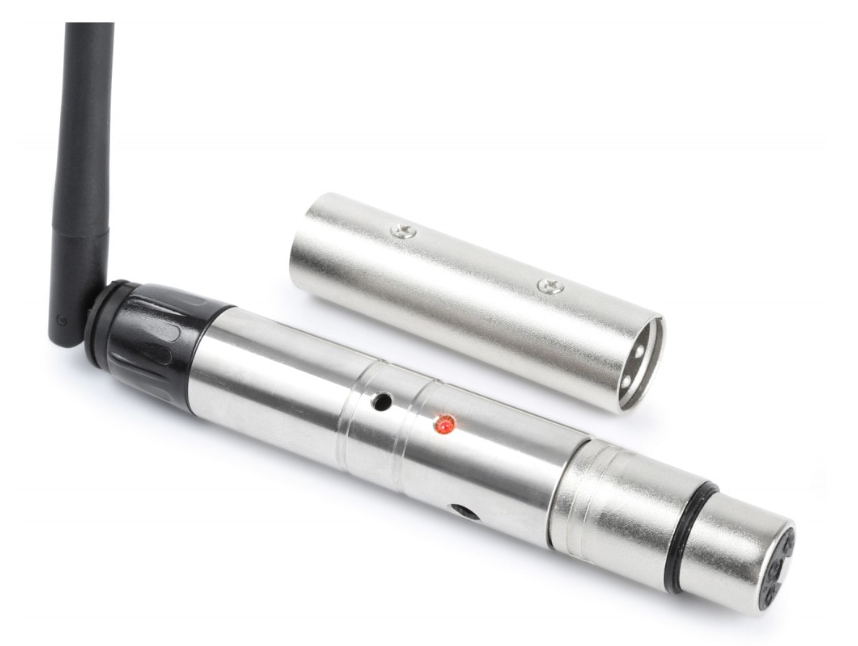
Wireless DMX Address Configuration (Optional)
If you're using a wireless DMX system, you can configure addresses remotely:
- Set up the transmitter and receivers: Connect the transmitter to the DMX controller and pair it with the receivers.
- Access wireless address settings: Some systems offer an app or control panel for address configuration.
- Assign addresses wirelessly: Use the app or panel to select each fixture's starting address.
- Test the setup: Ensure all lights respond correctly.
Testing and Troubleshooting
After setting the DMX addresses, follow these steps to verify the setup:
- Connect the fixtures: Use DMX cables or wireless DMX.
- Operate the controller: Select the channels for each fixture and adjust settings (e.g., dimming or color).
- Check for issues:
- Unresponsive fixtures: Double-check the address settings and connections.
- Multiple fixtures responding together: Reassign addresses to ensure each fixture is unique.
FAQ
Q: How to avoid DMX address conflicts for multiple LED PAR lights?
- Ensure each fixture has a unique starting address. For example, if one fixture occupies channels 1-8, the next fixture should start at address 9 to avoid conflicts.
Q: How do I check if my fixture is responding correctly?
- Connect the fixture to the DMX controller and test each channel. Each fixture should respond to the assigned address.
Q: What happens if I exceed 512 channels in a DMX universe?
- You will need to use a second DMX universe or reduce the number of channels each fixture uses.
Conclusion
Setting the DMX address for LED PAR lights is a simple process that ensures your lights work seamlessly in a DMX-controlled environment. By following these steps, avoiding address conflicts, and performing tests, you can achieve flawless lighting effects for any event.
By implementing the tips above and following the step-by-step guide, you'll avoid common mistakes and set your LED PAR lights up for success in any DMX setup.